
What can I do in Suggest Mode in Track Changes?
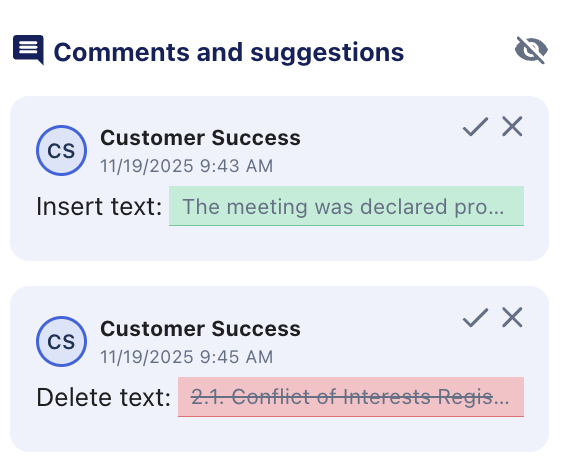
In Suggest Mode, you can:
- Edit text
- Add new phrases or corrections
- Propose deletions
- Leave comments
All suggested changes:
- Are saved automatically
- Are highlighted in colour for visibility
- Appear on the right-hand side for review by the Corporate Secretary team
How do I leave a comment on the document?
- Highlight the part of the text you want to comment on.
- Click the comment icon (speech bubble).
- Type your comment and publish it.
Your comment will appear on the right-hand side.
How do I complete the review of meeting minutes?
At the end of the review process, we recommend adding a final comment.
- Select the last sentence of the meeting minutes.
- Click the comment icon.
- Enter "Minutes approved" and publish.
This signals to the Corporate Secretary team and to toher reviewers that the review process is complete.
How do I mark that no further decisions will be made?
If needed, add the following sentence to the end of the minutes in Suggest Mode:
"No further decisions will be made."
You can add this as a suggested change or a comment.